
 501, Fifth Avenue, Suite 805 New York, NY 10017
 info@techwize.com
 +1 (949) 887-0154
 TechWize
Visual workflows look simple on the surface. A few boxes, some connecting lines, and a drag-and-drop interface – how hard could it be? In reality, building one from scratch is a completely different story. Developers quickly find themselves buried in edge connection bugs, broken zoom functions, sluggish performance on large graphs, and re-render nightmares that push deadlines further and further out.
React Flow changes that entirely. It is a production-ready React library designed specifically for building interactive flow diagrams, workflow editors, and automation interfaces – without the heavy lifting. Whether you are building a no-code platform, a data pipeline visualizer, or an AI Development interface, React Flow gives your team the foundation to move fast without sacrificing quality.
This guide walks you through everything – from setup to custom nodes, performance optimization, and real-world use cases.
Why Developers Choose React Flow Over Building Diagram Tools From Scratch
Building a visual workflow editor from scratch sounds manageable until your team hits week three and is still debugging pan controls. The real cost is not just development time – it is the business logic that never gets built because the UI keeps breaking.
React Flow solves this with a ready-made framework that handles the hardest parts out of the box:
- Drag-and-drop node management that just works
- Smooth zoom and pan controls that scale with your diagram
- Flexible, customizable edges to represent any relationship
- Fully customizable nodes to match your exact business logic
Platforms like n8n Automation Solutions have already proven this model works at scale. Instead of reinventing workflow infrastructure, your team can focus entirely on what makes your product unique.
React Flow Implementation Guide: Step-by-Step Workflow Automation Setup
Prerequisites for Getting Started
Before diving in, make sure you have the following in place:
- Solid understanding of React basics – components, state, and props
- Node.js is installed on your machine.
- npm configured and ready to manage packages
These three things are all you need to hit the ground running.
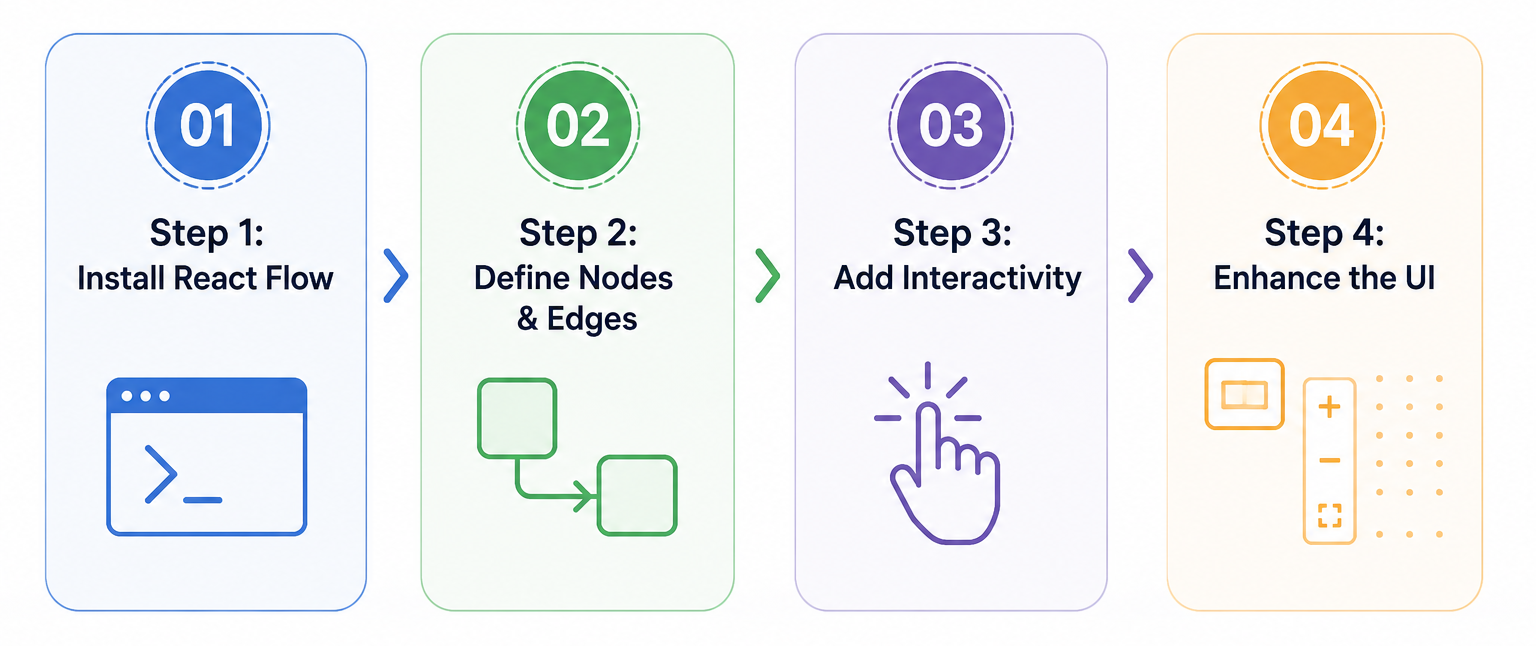
Step 1: Installing React Flow via npm
Open your terminal, navigate to your project folder, and run:
bash
npm install reactflow
This single command gives you access to the entire React Flow library – components, hooks, utilities, and all.
Step 2: Defining Nodes and Edges
Once installed, define the structure of your workflow. Nodes represent steps or actions, and edges connect them.
JavaScript
const nodes = [
  {
    id: '1',
    data: { label: 'Start' },
    position: { x: 0, y: 0 }
  },
  {
    id: '2',
    data: { label: 'Process' },
    position: { x: 200, y: 100 }
  },
];
const edges = [
  {
    id: 'e1-2',
    source: '1',
    target: '2'
  }
];
This gives you an immediate working diagram to build on.
Step 3: Adding Interactivity – Drag, Zoom, Click Events
A static diagram is just a picture. To make your workflow genuinely useful, you need users to interact with it. React Flow enables node dragging, smooth zoom in and out, and event handlers for clicks and state changes – all with minimal configuration. This turns a visual layout into a dynamic, functional tool that responds to real user input.
Step 4: Enhancing with MiniMap, Controls, and Background
Three additions that take your workflow from functional to professional:
- MiniMap – gives users a bird's-eye view of the entire diagram.
- Controls – adds zoom in, zoom out, and fit-to-screen buttons.
- Background – overlays a grid for visual reference and layout clarity.
These enhancements are small in code but massive in usability, especially when workflows grow to dozens or hundreds of nodes.
How to Create Interactive Custom Nodes and Edges in React Applications
Default nodes are a starting point, not a destination. Custom nodes allow you to embed real business logic directly into your diagram – buttons, status indicators, tooltips, metadata, conditional styling, and more.
Here is a simple custom node example:
JavaScript
import React from 'react';
import { Handle, Position } from 'reactflow';

function CustomNode({ data }) {
  return (
    <div
      style={{
        padding: '10px',
        border: '1px solid #333',
        borderRadius: '8px'
      }}
    >
      <strong>{data.label}</strong>
      <p>{data.description}</p>

      <Handle
        type="target"
        position={Position.Left}
      />
      <Handle
        type="source"
        position={Position.Right}
      />
    </div>
  );
}
export default CustomNode;
Key things to note here:
- Handle components define exactly where connections attach.
- Styling can be applied via inline styles, CSS modules, or Tailwind.
- Data props make each node dynamic and content-driven
For edges, React Flow supports straight, smooth, and step types. Choose based on readability. You can customize colors, stroke widths, and arrowheads to visually communicate status or relationship type. Add hover tooltips for extra context, and use isValidConnection to enforce connection rules and prevent invalid workflow logic.
JavaScript
const edges = [
  {
    id: 'e1-2',
    source: '1',
    target: '2',
    animated: true,
    style: {
      stroke: '#4CAF50',
      strokeWidth: 2,
    },
  },
];
The combination of custom nodes and styled edges transforms a plain diagram into a workflow that truly reflects how your application operates.
Performance Optimization for High-Traffic React Web Development Projects
As workflows scale, performance becomes the defining challenge. Large graphs drag during zoom, trigger excessive re-renders, and create excessive memory overhead, bringing the entire experience to a crawl. In high-traffic React web development environments, this is not acceptable.
Here is how to keep React Flow fast at scale:
Memoization – Wrap nodes with React.memo and use useMemo to prevent components from re-rendering when nothing has changed.
State Separation – Keep state local to individual nodes wherever possible. Global state updates cause full re-renders. Local state does not.
Selective Rendering – Only render nodes currently visible in the viewport. React Flow supports this natively, but your custom nodes should respect it too.
Lightweight Nodes – Avoid heavy DOM structures inside nodes. Use SVG or canvas-based visuals for complex graphical elements.
JavaScript
import React from 'react';
import { Handle, Position } from 'reactflow';

function CustomNode({ data }) {
  return (
    <div
      style={{
        padding: '10px',
        border: '1px solid #333',
        borderRadius: '8px'
      }}
    >
      <strong>{data.label}</strong>
      <p>{data.description}</p>

      <Handle
        type="target"
        position={Position.Left}
      />
      <Handle
        type="source"
        position={Position.Right}
      />
    </div>
  );
}
export default CustomNode;
This pattern ensures that only changed nodes are updated, keeping even the most complex graphs smooth and responsive.
Real-World Use Cases: Where React Flow Fits in Modern Platforms
React Flow is not limited to one type of application. It powers some of the most complex visual interfaces in the modern software ecosystem:
Workflow Builders – Drag-and-drop automation editors where users configure multi-step logic without writing a single line of code. This is where tools inspired by Workato Implementation patterns shine – connecting business processes visually while handling complex integrations beneath the surface.
Data Pipelines – Engineers can trace multi-step transformations, spot bottlenecks, and validate data flow accuracy through interactive diagrams rather than reading logs.
Mind-Mapping Tools – Teams convert ideas into structured, interactive workflows. This improves collaboration across both technical and non-technical stakeholders in a way that spreadsheets and documents simply cannot.
No-Code and Low-Code Platforms – React Flow bridges the gap between technical complexity and everyday usability, making it the go-to choice for platforms that need to feel powerful but remain accessible.

Build Smarter Visual Workflows with React Flow
Build scalable and interactive workflows using React Flow with custom nodes, dynamic edges, and high-performance architecture for modern React applications.
Speak with React Flow SpecialistsTechWize: Leading React Development Company for Scalable Web Solutions
At TechWize, we do not just integrate React Flow – we build workflow solutions that align precisely with your business logic. Our approach to React Consultancy starts with a thorough understanding of your process complexity, user expectations, and technical environment before a single line of code is written.
Our React Implementation methodology focuses on three things: custom node and edge design that reflects real operational logic, performance-first architecture that scales without breaking, and seamless integration with SaaS dashboards, automation platforms, and backend systems. The result is not just a diagram – it is a working product that your users will actually rely on. With TechWize, you get a team that treats React web development as a business investment, not just a technical task.
Read Similar Blog

TypeScript for Enhanced Type Safety and Maintainability in React Projects
Discover the Best React Approach ⬩➤Conclusion: Build Smarter Workflows with the Right React Stack
React Flow removes the single biggest barrier to building visual workflow tools – time. With custom nodes, dynamic edges, built-in performance optimizations, and a flexible API, development teams can focus entirely on solving real business problems rather than wrestling with UI mechanics.
The library is proven, scalable, and trusted by platforms processing millions of workflow interactions. The question is not whether React Flow is the right tool. The question is whether your team has the right expertise to use it to its full potential. If you are ready to build smarter, faster, and more scalable workflows, the right React stack – and the right partner – makes all the difference.